

How to use two-factor authentication (2FA)

Step 1 – Mobile app
To secure your account with two-step verification, we use authentication via a mobile app.
The app generates a unique time-limited code for logging in.
You can use the Authenticator app from Google, Microsoft, or others. Install it on your mobile device.
- Seznam
Google Authenticator


Microsoft Authenticator

Step 2 – Creating an authenticator in the e-shop
Once you have your mobile device with the Authenticator app ready, go to the Your company / Your authenticators.
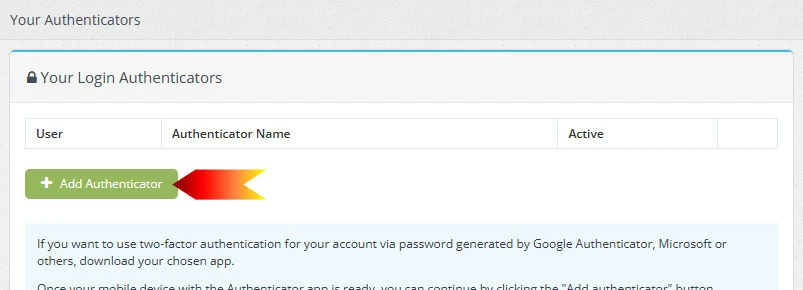
On the page, continue by pressing the "Add authenticator" button.
- Seznam
Nadpis
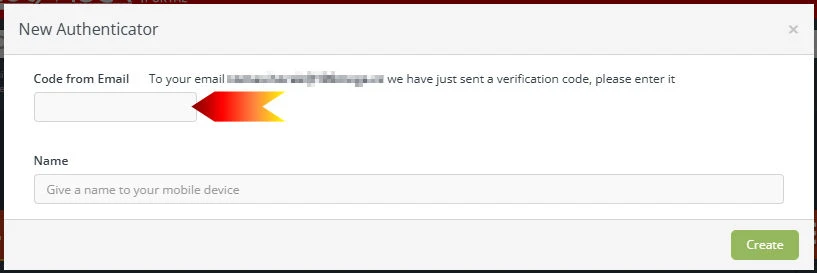
You will then be asked to enter the numerical code that was sent to your registered email address when you clicked the button.
- Seznam
Step 3 – Activating the authenticator
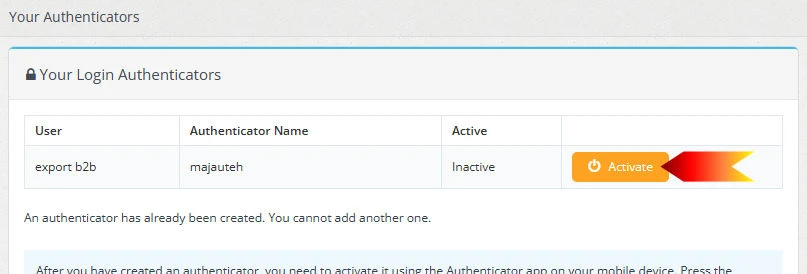
After creating the authenticator, you need to activate it using the Authenticator app on your mobile device.
On the "Your authenticators" page of the e-shop, click on the "Activate" button next to your authenticator.
- Seznam
Nadpis
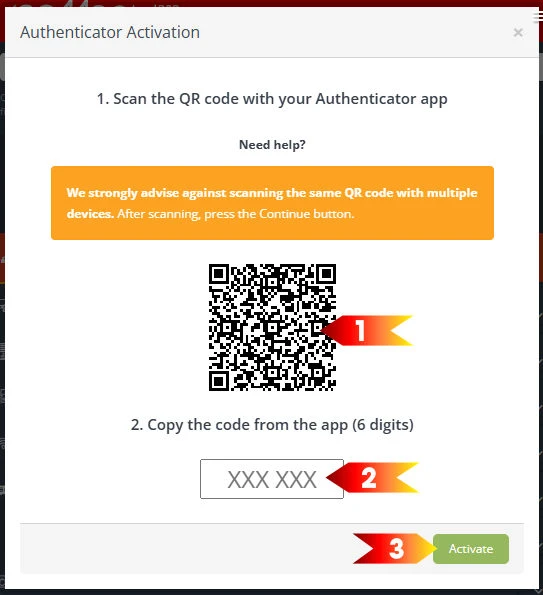
The e-shop page will display a window with a QR code.
Launch the authenticator app on your mobile device and select "Add Authenticator" (or +, depending on the app you have selected).
Scan the QR code with your authenticator app. (see 1 in the image below)
- Seznam
Nadpis
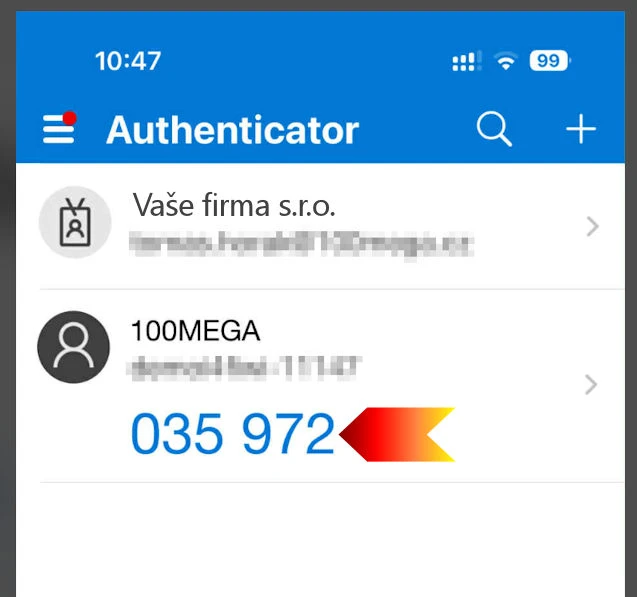
The authenticator on your mobile device will create a record for our e-shop.
The authenticator will display a 6-digit code, which you should copy (step 2 in the image above) into the authenticator activation window on the e-shop.
- Seznam
Nadpis
In the e-shop window where you entered the 6-digit code, click on "Activate". (Please note the expiration date of the code displayed by the application).
This completes the activation of the authenticator.
- Seznam
Step 4 – Logging in with an authenticator (2FA)
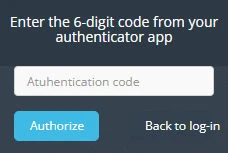
After successfully activating the authenticator, you will always be prompted to enter a 6-digit code after logging in with your username and password.
Launch the authenticator app on your mobile device. Select "100MEGA" from the list and copy the 6-digit code displayed into the field in the e-shop login. (Depending on the type of app, you may need to click on the "100MEGA" account in the list of authentications on your mobile device).
- Seznam
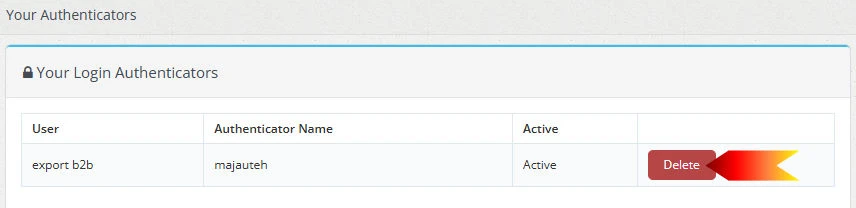
Authenticator cancellation
If necessary, you can disable the authenticator (loss of mobile device) for a specific device.
If you use features that require 2FA authentication, you will be prompted to reactivate the authenticator.
- Seznam